

Which client are you using?
Claude Desktop
Add Zell as a custom connector in the Claude app.
ChatGPT
Add Zell as a custom app in ChatGPT Developer Mode.
Claude Code
Install Zell from your terminal and authorize it in a session.
Codex
Add and authorize Zell with the Codex CLI.
Claude Desktop
1
Choose your setup path
- Individual plan
- Team or Enterprise owner
- Team or Enterprise member
Open the Claude desktop app and go to Settings → Connectors. Click Add in the upper-right corner, then select Add custom connector.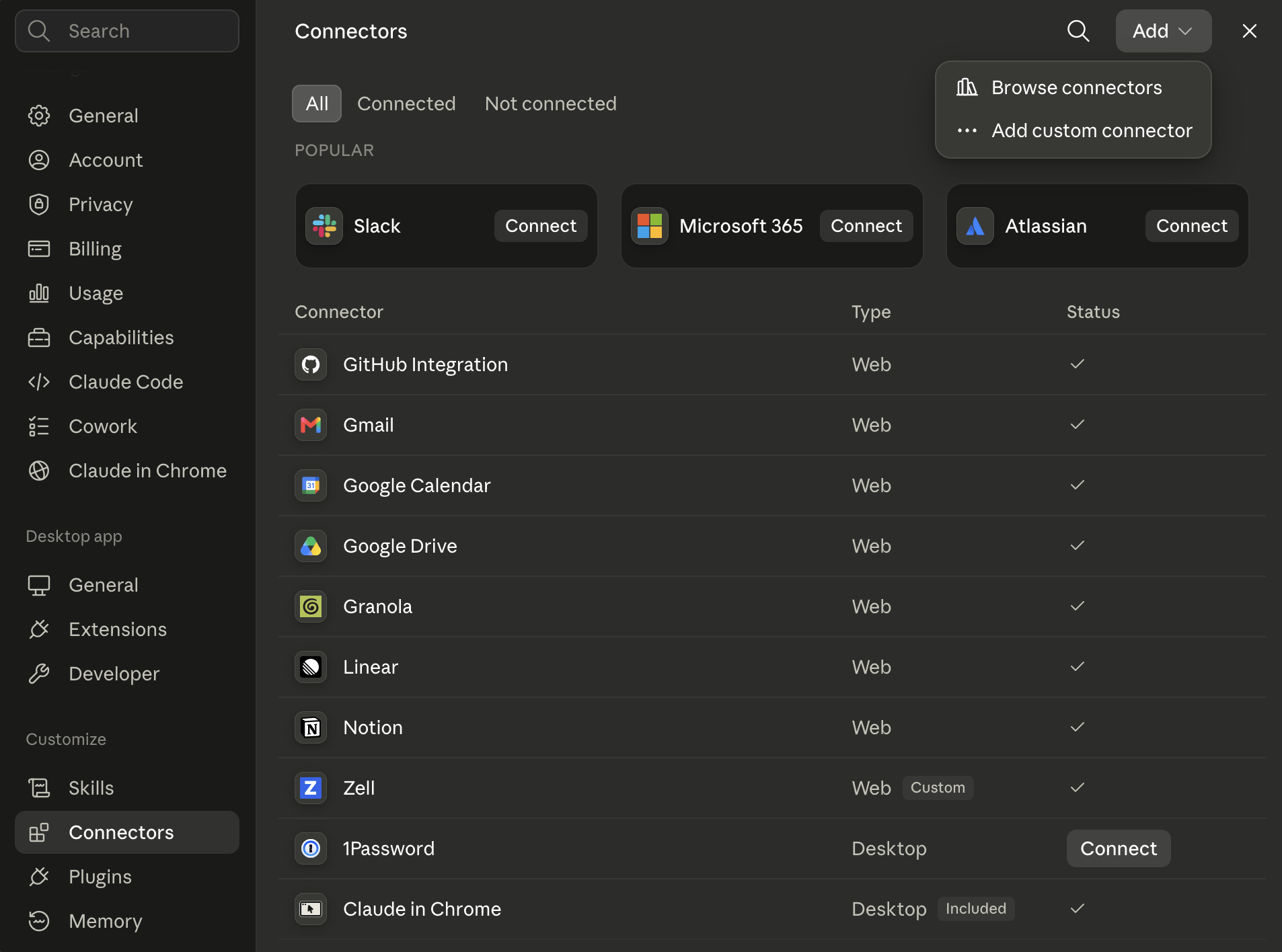
2
Enter the Zell details
If you are using an individual plan or adding Zell as an organization owner, use Zell as the connector name and enter this URL as the remote MCP server URL:Save or connect the custom connector.
3
Authorize Zell
On Team and Enterprise plans, every user—including the owner who added Zell—must go to Customize → Connectors, find Zell, and click Connect.Sign in to Zell in the browser window that opens and approve the connection.
4
Confirm the connection
Return to the connector list: Settings → Connectors on an individual plan or Customize → Connectors on a Team or Enterprise plan. Zell should appear as a custom web connector with a connected status.
Zell is now ready to use in Claude Desktop.
ChatGPT
ChatGPT Developer Mode is available on the web for Plus, Pro, Business, Enterprise, and Education accounts. Managed workspaces may restrict who can create or publish custom apps.
1
Enable Developer Mode
Open ChatGPT on the web, go to Settings → Security and login, and turn on Developer mode.
2
Create the Zell app
Open ChatGPT Plugins, click the plus button, and create a Developer Mode app with these details:
3
Authorize Zell
Create the app and complete the OAuth prompt. Sign in to Zell and approve the connection. The finished app appears under Drafts in your ChatGPT app settings.
4
Test Zell in a chat
Start a new chat, open the plus menu, choose Developer mode, and select Zell for the conversation. Ask ChatGPT to use Zell in your prompt and review tool calls before approving them.
Zell is now ready to use in ChatGPT.
5
Publish for your workspace (optional)
In a managed workspace, an admin or owner can review the draft and publish Zell for other members. Each member connects their own Zell account before first use.
Claude Code
1
Add the Zell MCP server
Run this command in your terminal:This saves Zell as an HTTP MCP server named 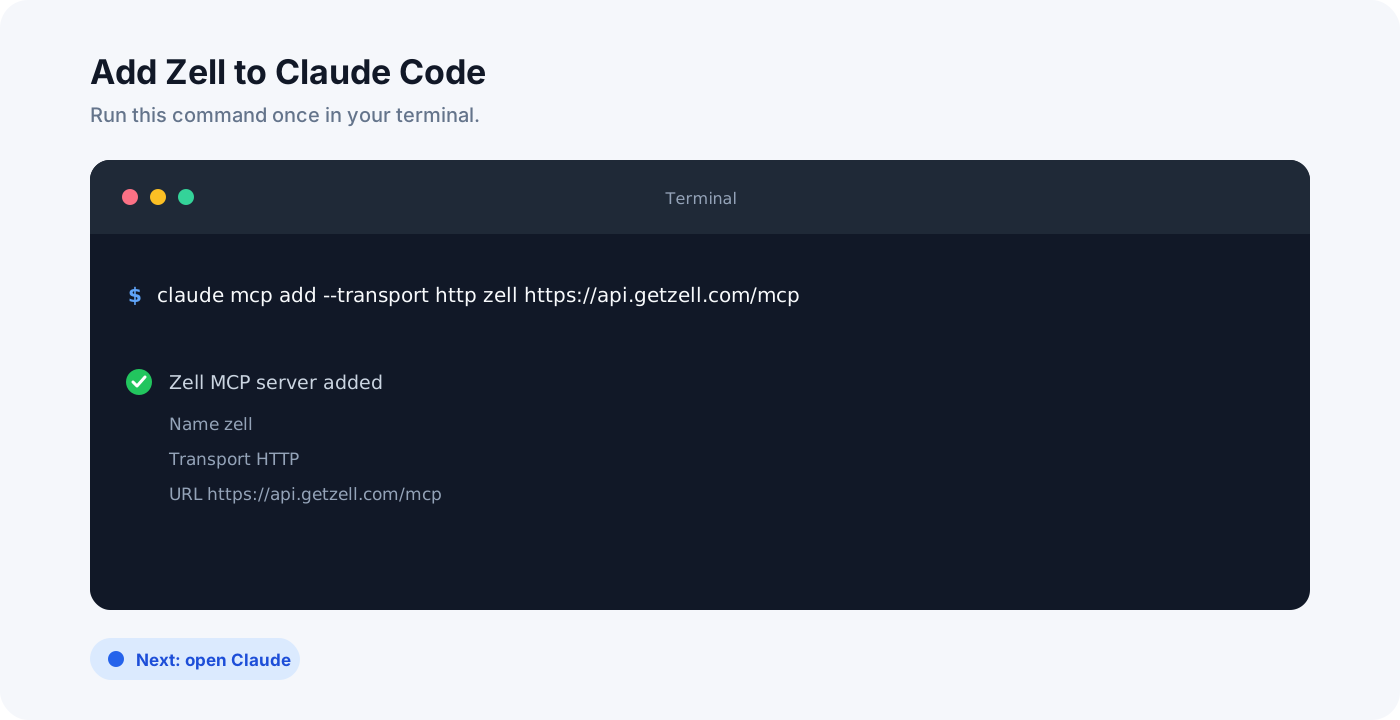
zell in Claude Code.2
Open Claude Code
Start a new Claude Code session, or return to one that is already running.
3
Start OAuth from the MCP menu
Enter the following slash command inside the Claude Code session:Select zell and follow the authentication prompt. Claude Code opens your browser so you can sign in to Zell and authorize the connection.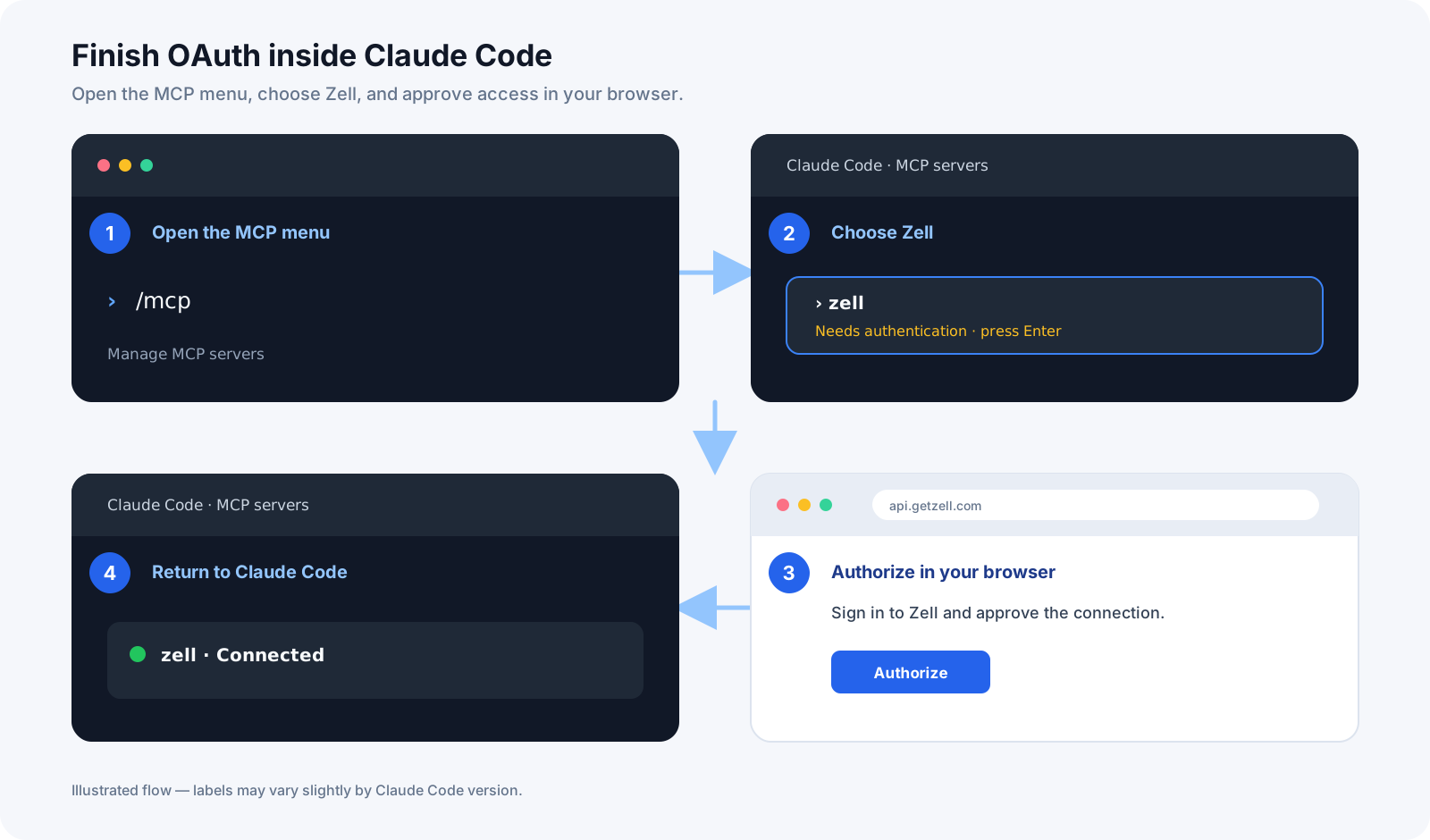
4
Confirm the connection
Return to Claude Code after authorization. Open
/mcp again and confirm that zell is connected.Zell is now ready to use in Claude Code.
Codex
Add the Zell MCP server:Troubleshooting
ChatGPT does not show Developer Mode or Create
ChatGPT does not show Developer Mode or Create
Confirm that you are using ChatGPT web with a Plus, Pro, Business, Enterprise, or Education account. In a managed workspace, ask your workspace admin whether Developer Mode or custom app creation is restricted.
ChatGPT cannot scan the Zell tools
ChatGPT cannot scan the Zell tools
Confirm that the MCP server URL is exactly
https://api.getzell.com/mcp, refresh the Zell app from its settings, and complete the OAuth prompt again. If authorization expired, reconnect or recreate the app.Zell does not appear in Claude Desktop
Zell does not appear in Claude Desktop
On an individual plan, add the custom connector again and confirm that the URL is exactly
https://api.getzell.com/mcp. On Team and Enterprise plans, ask an Owner or Primary Owner to check that Zell is present under Organization settings → Connectors. After it is added there, users can find Zell under Customize → Connectors.Claude Code does not show Zell in /mcp
Claude Code does not show Zell in /mcp
Run the
claude mcp add command again and check that the server name is zell. Then restart your Claude Code session and open /mcp.The browser did not open
The browser did not open
Open Zell from the Claude Desktop connector list or
/mcp in Claude Code and start the connection again. In Codex, rerun codex mcp login zell. Follow any authorization URL displayed if the browser still does not open automatically.